In this post, I’m sharing an application I wrote in Cursor (a low-code/AI agentic tool) to convert an Excel workbook into a fully interactive, portable, open-source, and responsive web application. Other software tools used in this project include Python editor for a small Python script, and Excel. More on that later.

Backstory
I am intrigued by languages. To that end, I learn new words (spoken and/or written) in various languages, and that includes English. It’s fascinating to me how little we learn from typical media these days as they all seem to use the same expressions and terms over and over. So, I make an extra effort to read outside of that bubble (via books, internet resources, international/British sources) to continue to enhance my vocabulary. I have been saving those in an Excel workbook with mutiple columns (word, example sentence, parts of speech, etc.) which makes it quite informative and works as a personal reminder to practice some words even though I may not hear them in the daily life for ages. Think of the workbook as my curated corpus of words, phrases, idioms, terms but not meant to be a comprehensive dictionary.
Next Level
While the Excel workbook is great for local analytics and update, I wanted a version of this accessible from anywhere, to anyone for free! Obviously, I don’t want others to edit the sheet, but I want them to interact with it. Users (including myself) should be able to get a random word on load, and on demand. They also should be able to search for a word and if it exists, get all its details from my workbook data. And crucially, I want this to work on any device without requiring any download or licenses, in a sleek and clean interface.
The Design Solution
The solution I came up with it to create a web application using Javascript with standard HTML and CSS. The interactivity and inteligent navigation are made possible by Javascript. The data was converted from XLSX to JSON using some Python code. It becomes our database. This is only required for first-time deployment, and to deploy updated dataset of words, and is a local module that’s not needed nor deployed to the web server. The JSON data is read into memory at my web server (flyingsalmon.net) by the page code (js), and the browser renders the data accordingly in a responsive, scalable way.
Since the whole solution (html, css, json, and js files) is deployed on a web server, anyone with the URL can run it. The HTML code is made to be responsible and will scale the UI dimensions in real-time depending on the device that it’s being viewed in.
To update my database, I don’t have to touch the code at all. Only update the JSON database and upload to my web server and everything will just fall into place.
To run it, we only just need to open it in a modern browser on any device. Once the plan is in place, and Python script written, rest of it was putting Cursor AI IDE do the implementation.
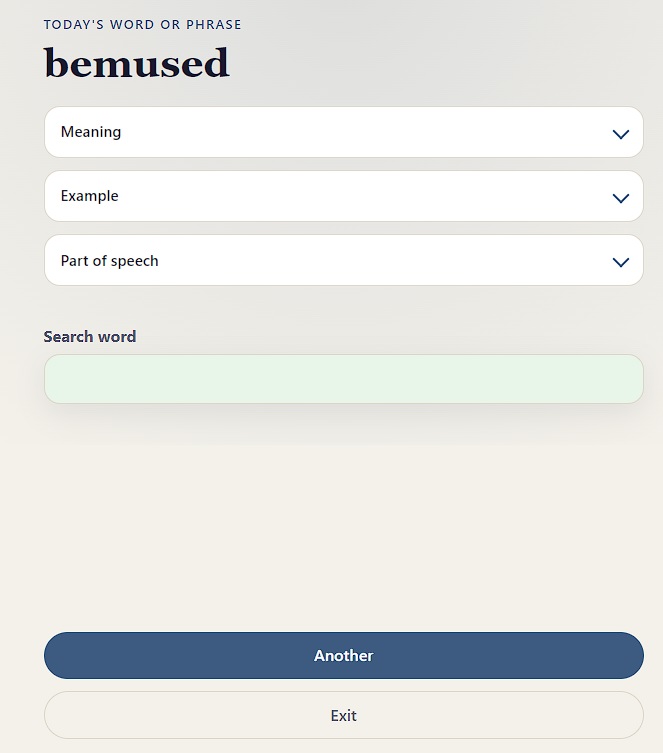
The UI is simple and effective
As soon it loads, it picks a random word from the database but I intentionally initially hide the Meaning, Example usage, and Part of speech as a mental exercise. However, if you’re stuck or want to confirm your understanding of the word, just tap (or click) on each of those section headers and it’ll display their respective information. Not all words/phrases have all of these sections filled in yet (I’ll get to them eventually), in those cases, the section will not appear in the UI for that word. This keep the UI very clean and intuitive.
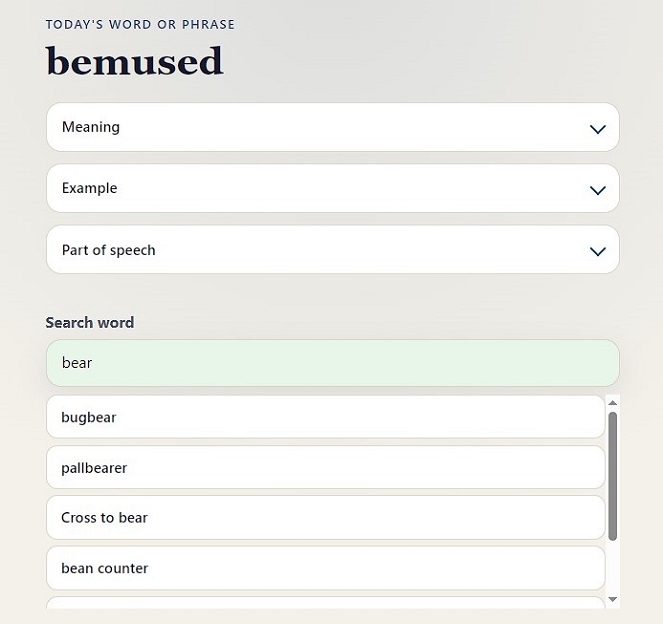
There’s also a search input box (light green field) where user can type in a whole word, or partial. And the app will show up to 12 nearst matches. The matching behavior is:
- Full and partial matches (e.g.
bug→bugbear) - Typo-tolerant matching via edit distance on words and short phrases
- Results sorted by closeness (exact → starts-with → contains → fuzzy)
For example, if “bear” is entered in the search box, we see the matches appear below it sorted in relevance order…
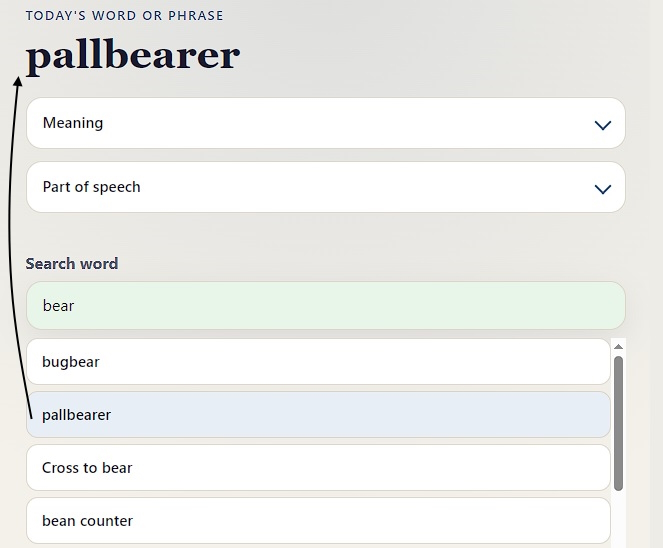
Tapping on any of the matches, will bring it to the fore and that word now becomes active at the top of the page. The UI would look like when user taps “pallbearer” from the scrollable results list.
There’s also a button labeled Another near the bottom of the page, which brings up another random word/phrase from the database. The Exit button closes the current browser tab.
Now, it’s time for you to check it out LIVE: Today’s Word or Phrase or, open this URL on another device’s browser anytime: https://flyingsalmon.net/demos/todays-word/
