This post relates to Windows and Microsoft 365 fonts.
If you’ve ever tried programmatically listing the fonts installed on a Windows machine, you’ve probably run into a wall. Standard libraries like Matplotlib’s font manager only scan system-wide directories (like C:\Windows\Fonts), and miss per-user and modern Microsoft 365 cloud-synced fonts registered under your user profile.
To solve this, I put together a robust Python script that queries the Windows Registry directly, compiles a comprehensive inventory of both system-wide and user-level fonts, and automatically generates a gorgeous, searchable HTML catalog complete with live typefaces, custom coding samples, and a dedicated Monospace Font Catalog section.
The Problem with Standard Scanners
When building font tools on Windows, standard library approaches often miss cloud-synced or per-user fonts.
• System-wide Fonts (HKLM): Stored traditionally in C:\Windows\Fonts.
• User & M365 Fonts (HKCU): Modern fonts (those that appear only Microsoft Office for example) are registered under your personal user registry hive and user AppData folder (%LOCALAPPDATA%\Microsoft\Windows\Fonts).
By using Python’s built-in winreg module, our script inspects both the machine hive (HKLM) and the user hive (HKCU) to ensure nothing is left behind.
Key Features of the Tool
- Dual Registry Querying: Captures every system-wide and user/M365 installed font.
- Live Interactive Search Bar: Instantly filters font cards in real time as you type, narrowing down results across both sections simultaneously.
- Dual-Sample Layout per Font:
- Standard Sample: Displays a traditional pangram (The quick brown fox jumps over the lazy dog. 0123456789) in sans-serif or monospace.
- Legibility Test: Highlights lookalike characters and glyphs (i, I, l, L, 1, |, 0, O, S, 5, Z, 2)—essential for picking clean coding and data-entry fonts.
- Organized Sections: Automatically separates the catalog into an All Installed Fonts view and a dedicated Monospace Font Catalog view.
- Auto-Launch: Automatically writes out complete_font_catalog.html and launches it right in your default web browser.
The Python Script
"""
Comments:
Matplotlib's font manager scans standard system-wide directories (like C:\\Windows\\Fonts).
However, Microsoft 365 and modern Windows versions install per-user and cloud-synced fonts (like Aptos, Aptos Display, Bierstadt, etc.)
specifically for your user profile—registering them under your personal Windows Registry hive (HKCU) and
user AppData folder (%LOCALAPPDATA%\\Microsoft\\Windows\\Fonts), which Matplotlib does not catch.
So, to capture both system-wide and user/M365 cloud fonts, the script below queries the Windows Registry directly using winreg module.
Output file: programming/Python/system_fonts_catalog.html
The HTML file is saved in the same location as the Python script.
There are 2 sections created on the html page:
- All fonts
- Monospace fonts only
At the top of the page is a live searchable input box that filters to the closest font name while typed. It filters both sections (all fonts, monospace fonts) accordingly.
Sample font layout:
STANDARD SAMPLE
The quick brown fox jumps over the lazy dog. 0123456789
LEGIBILITY TEST (i, I, l, L, 1, 0, O)
i I l L 1 | 0 O S 5 Z 2
The second line (for legibility test) is especially useful for evaluating coding or readability fonts by highlighting easily confused glyphs like:
lowercase i, uppercase I, lowercase l, uppercase L, the number 1, pipe |, zero 0, uppercase O, S, 5, Z, and 2.
Example output (rendered perfectly in a browser with the exact typeface):
5x8 LCD HD44780U A02
The quick brown fox jumps over the lazy dog. 0123456789
i I l L 1 | 0 O S 5 Z 2
NOTES:
This is specifically for Windows OS.
Certain fonts that are supplied only via the Cloud and available in your Office applications will not show here if they're not actually installed on your system (e.g. Aptos).
TR 11/2026
"""
import winreg
import webbrowser
import os
def get_windows_fonts():
font_names = set()
# Query both System-wide (HKLM) and User-specific/M365 (HKCU) font registry keys
hives = [
(winreg.HKEY_LOCAL_MACHINE, r"SOFTWARE\Microsoft\Windows NT\CurrentVersion\Fonts"),
(winreg.HKEY_CURRENT_USER, r"SOFTWARE\Microsoft\Windows NT\CurrentVersion\Fonts")
]
for hive, path in hives:
try:
reg_key = winreg.OpenKey(hive, path, 0, winreg.KEY_READ)
for i in range(winreg.QueryInfoKey(reg_key)[1]):
try:
name, value, _ = winreg.EnumValue(reg_key, i)
# Clean up trailing technical strings like "(TrueType)" or "(OpenType)"
if "(" in name:
name = name[:name.index("(")].strip()
font_names.add(name)
except Exception:
continue
winreg.CloseKey(reg_key)
except Exception:
continue
return sorted(list(font_names))
# Get all system & M365 fonts
all_fonts = get_windows_fonts()
# Define keywords to isolate monospace / coding fonts
mono_keywords = [
"mono", "code", "consola", "courier", "fixed", "terminal",
"lucida console", "jetbrains", "fira", "hack", "ubuntu",
"roboto", "menlo", "monaco", "plex", "victor", "cascadia"
]
mono_fonts = [f for f in all_fonts if any(kw in f.lower() for kw in mono_keywords)]
# Build the comprehensive HTML catalog
html_content = f"""
<!DOCTYPE html>
<html>
<head>
<meta charset="utf-8">
<title>Complete Windows & M365 Font Catalog</title>
<style>
body {{ font-family: Arial, sans-serif; margin: 40px; background: #f8f9fa; color: #333; }}
h1 {{ margin-bottom: 5px; }}
h2 {{ margin-top: 50px; border-bottom: 2px solid #0078d4; padding-bottom: 8px; color: #1d3557; }}
.count {{ color: #666; margin-bottom: 15px; font-size: 14px; }}
.search-box {{ width: 100%; max-width: 450px; padding: 12px 16px; font-size: 16px; border: 1px solid #ccc; border-radius: 6px; margin-bottom: 20px; box-sizing: border-box; outline: none; transition: border-color 0.2s; }}
.search-box:focus {{ border-color: #0078d4; box-shadow: 0 0 5px rgba(0,120,212,0.3); }}
.font-card {{ background: white; padding: 16px 20px; margin-bottom: 14px; border-radius: 6px; box-shadow: 0 1px 3px rgba(0,0,0,0.1); border-left: 4px solid #0078d4; }}
.mono-card {{ border-left: 4px solid #107c41; }}
.meta {{ font-size: 12px; color: #666; margin-bottom: 6px; font-family: monospace; font-weight: bold; }}
.label {{ font-size: 10px; color: #888; text-transform: uppercase; letter-spacing: 0.5px; margin-top: 6px; }}
.sample {{ font-size: 20px; white-space: nowrap; overflow: hidden; text-overflow: ellipsis; }}
.legibility-sample {{ font-size: 20px; white-space: nowrap; overflow: hidden; text-overflow: ellipsis; color: #1d3557; border-top: 1px dashed #e2e8f0; padding-top: 6px; margin-top: 4px; }}
</style>
</head>
<body>
<h1>Complete Windows & M365 Font Catalog</h1>
<div class="count">Total system fonts: {len(all_fonts)} | Monospace fonts: {len(mono_fonts)}</div>
<!-- Live Search Input -->
<input type="text" id="searchInput" class="search-box" placeholder="Search across all fonts..." autofocus>
<h2>All Installed Fonts</h2>
<div id="allContainer">
"""
# Section 1: All Fonts
for font in all_fonts:
safe_font = font.replace('"', '"')
html_content += f"""
<div class="font-card" data-font-name="{safe_font.lower()}">
<div class="meta">{safe_font}</div>
<div class="label">Standard Sample</div>
<div class="sample" style="font-family: '{safe_font}', sans-serif;">
The quick brown fox jumps over the lazy dog. 0123456789
</div>
<div class="label">Legibility Test (i, I, l, L, 1, 0, O)</div>
<div class="legibility-sample" style="font-family: '{safe_font}', sans-serif;">
i I l L 1 | 0 O S 5 2 Z
</div>
</div>
"""
html_content += """
</div>
<h2>Monospace Font Catalog</h2>
<div id="monoContainer">
"""
# Section 2: Monospace Fonts Only
for font in mono_fonts:
safe_font = font.replace('"', '"')
html_content += f"""
<div class="font-card mono-card" data-font-name="{safe_font.lower()}">
<div class="meta">{safe_font}</div>
<div class="label">Standard Coding Sample</div>
<div class="sample" style="font-family: '{safe_font}', monospace;">
def calculate_total(items, tax_rate=0.05): return sum(items) * (1 + tax_rate)
</div>
<div class="label">Legibility Test (i, I, l, L, 1, 0, O)</div>
<div class="legibility-sample" style="font-family: '{safe_font}', monospace;">
i I l L 1 | 0 O S 5 2 Z
</div>
</div>
"""
html_content += """
</div>
<script>
// Real-time global filtering across both sections
const searchInput = document.getElementById('searchInput');
searchInput.addEventListener('input', function(e) {
const term = e.target.value.toLowerCase().trim();
const cards = document.querySelectorAll('.font-card');
cards.forEach(card => {
const fontName = card.getAttribute('data-font-name');
if (fontName.includes(term)) {
card.style.display = '';
} else {
card.style.display = 'none';
}
});
});
</script>
</body>
</html>
"""
# Save and write to file
filename = "complete_font_catalog.html"
with open(filename, "w", encoding="utf-8") as f:
f.write(html_content)
print(f"Success! Opening '{filename}' in your default browser...")
# Open the generated HTML file in the default web browser
webbrowser.open(os.path.abspath(filename))Example Snapshots
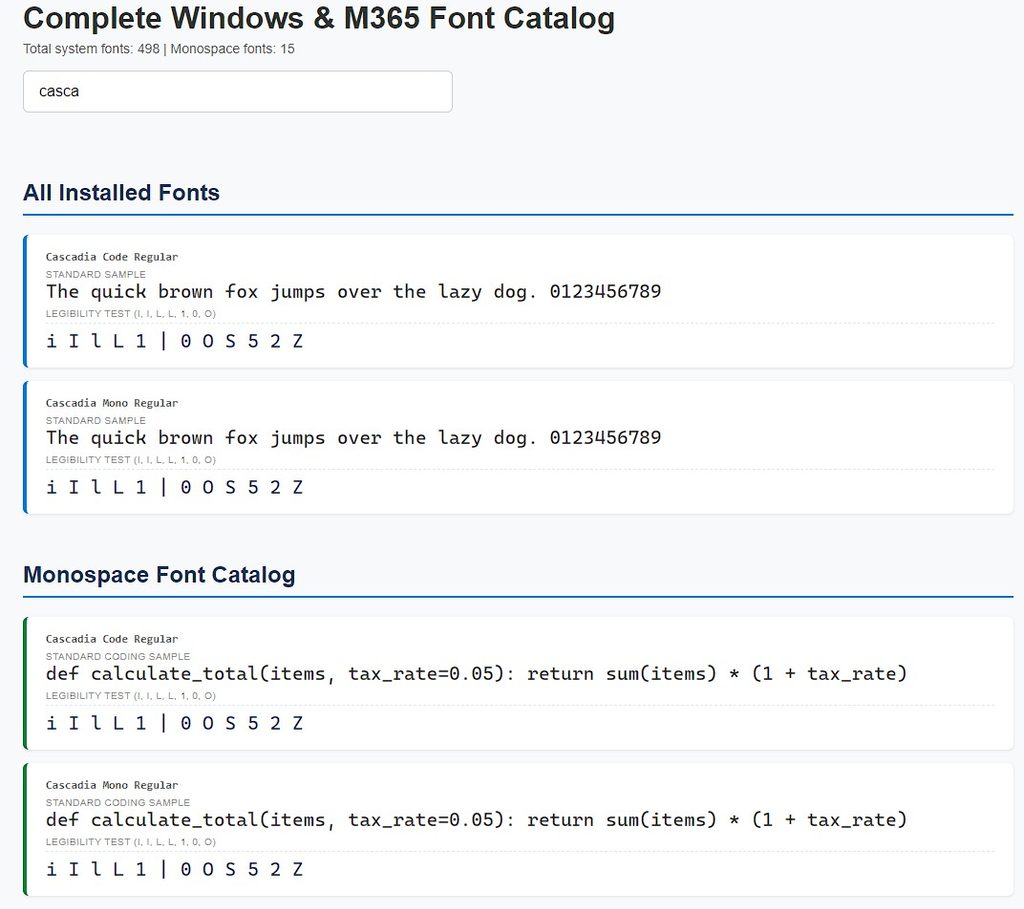
The following screenshot shows a filtered list with the nearest matches of font names containing “casca” in both sections of the generated HTML page:
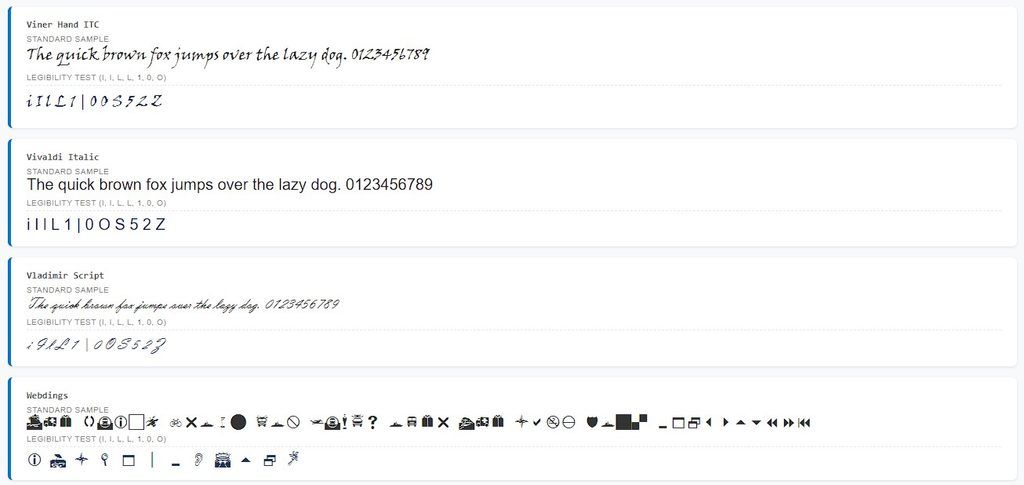
All fonts are rendered accurately according to their typefaces:
Wrap-Up
With this script in your toolkit, you can instantly audit your system typography, test code readability across dozens of monospace fonts, and quickly track down exact glyph behavior without clicking through endless font dropdown menus in Word or Excel. Happy coding!
